US Letter vs. A4: How to print worksheets without clipping
Print worksheets without clipping by matching U.S. Letter or A4 paper, orientation, margins, and scale. Includes desktop and mobile printing tips.
Choose the size before you download
U.S. Letter measures 8.5 × 11 inches. A4 measures 210 × 297 millimeters, about 8.27 × 11.69 inches. A4 is narrower and taller. If you load one size and print a PDF made for the other, the printer may scale the page or cut off artwork near an edge. Check the label on your paper pack if you are unsure.
Match the PDF and printer
- In WorksheetSprout, open Paper and preferences and choose the size in your tray.
- Choose portrait for a tall page or landscape for a wider writing area. Check the preview before downloading.
- Open the PDF in a viewer and choose the same paper size in the print dialog. Some printers have separate tray settings, so check those if the viewer reports a size mismatch.
- Choose Actual size or 100% to preserve the writing line size. If the print preview shows cropped edges, switch to Fit and check a test page.
Fix common printing surprises
The bottom line is missing. Check whether the correct paper size and orientation are selected. Some printers need a wider unprintable margin. The Fit setting reduces the page slightly to account for that margin.
The practice letters are too small. Check whether the dialog is set to multiple pages per sheet or a reduced scale. If the page layout is correct, try a larger practice size in the generator and regenerate the PDF.
The answer key printed with the student copy. Enter a page range in the PDF viewer, or turn off Include answer key before downloading the student version.
Print a single sheet before making copies
Use your first sheet to check the guides, margins, and readability. If you are printing a class set, keep the same tray and scaling settings for the remaining copies.
What the settings do to a real worksheet
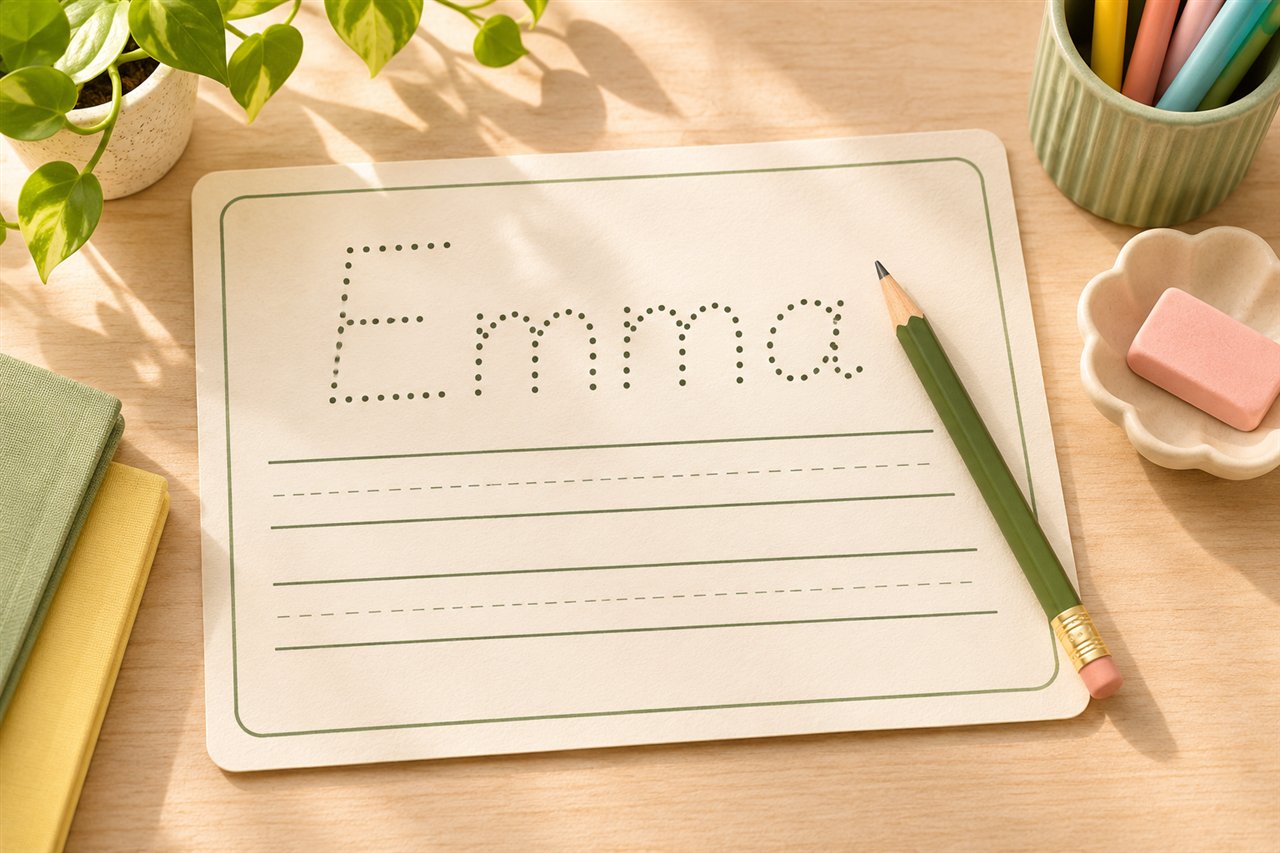
Suppose you downloaded a portrait A4 tracing sheet and your home printer contains U.S. Letter paper. At 100%, the printer may clip the bottom because A4 is taller than Letter. At Fit, the entire page may print, but the practice guides will be smaller. If you want the guides at their original size, regenerate the worksheet as U.S. Letter and choose Actual size in the print dialog.
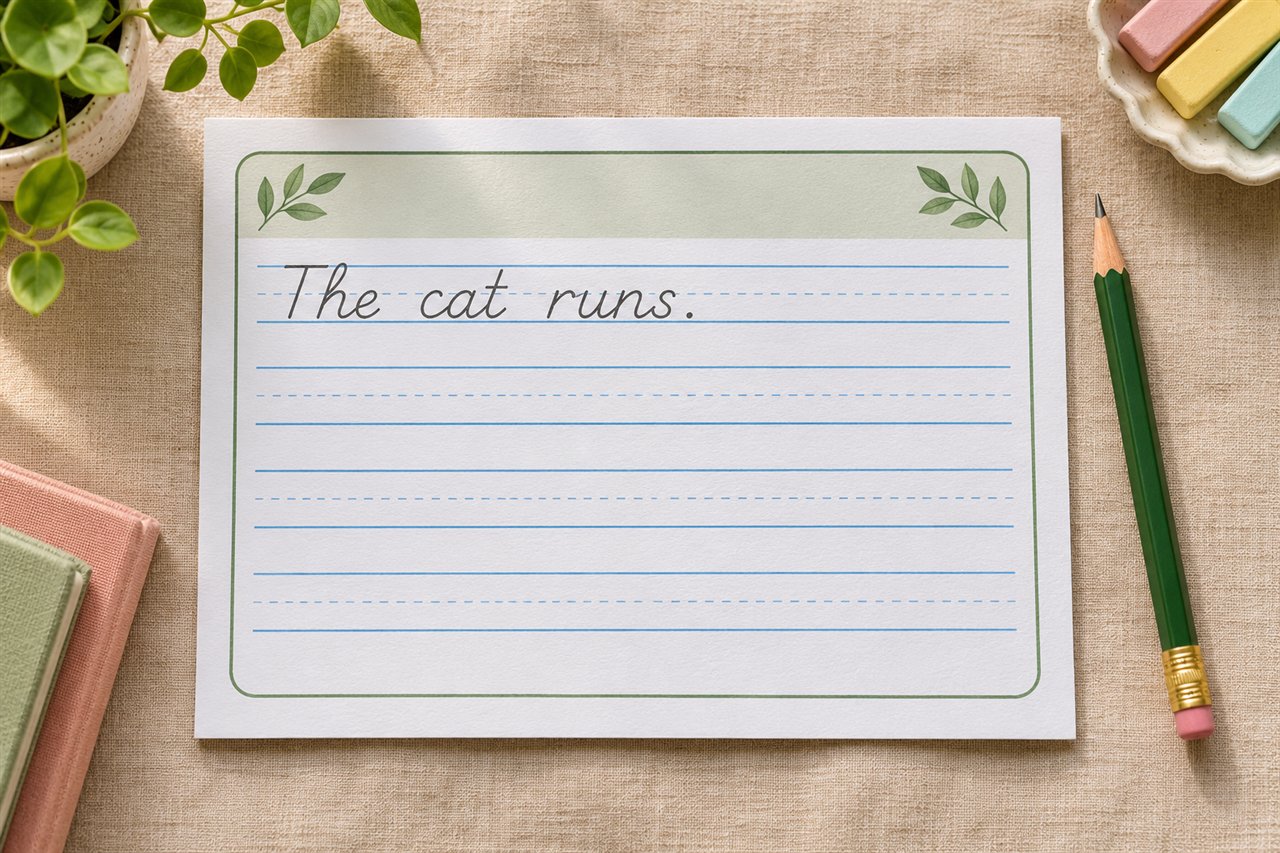
The same issue can show up when printing in landscape. Match the PDF orientation to the orientation in the printer dialog and preview page one. If auto-rotate changes the orientation unexpectedly, select it manually or open the PDF in a different viewer.
Keep a print checklist for shared printers
- Paper and tray. Check both the PDF size and the physical tray before printing a batch.
- Pages per sheet. Use one page per sheet when learners need the full writing area.
- Scale. Start with Actual size. Try Fit if marks at the edges are missing.
- Color. Choose grayscale in the generator or print dialog when color is unnecessary.
- Answer pages. Read the final pages of the PDF and enter just the student page range before making copies.
Try a test page on the same printer and tray you’ll use for the batch. A preview can show the page layout, but it can’t tell you whether a shared printer has the right paper loaded.
Printing from a phone or tablet
Download the file first and open it in a PDF viewer. Look for Print under the Share menu or the viewer’s menu. If the print dialog offers limited paper or scaling controls, transfer the saved PDF to a desktop with the same printer connected. The saved file already contains the worksheet size, page order, and answer pages you selected. For more help with a first packet, see the WorksheetSprout printing guide.
Try it with your own worksheet
Customize the page, check the preview, and download a free PDF.